Order queue
The order queue is the main page of Scanpacker. It shows all orders that need to be fulfilled, organized into tabs so you can see what’s pending, what’s being checked, and what’s already been checked or fulfilled.
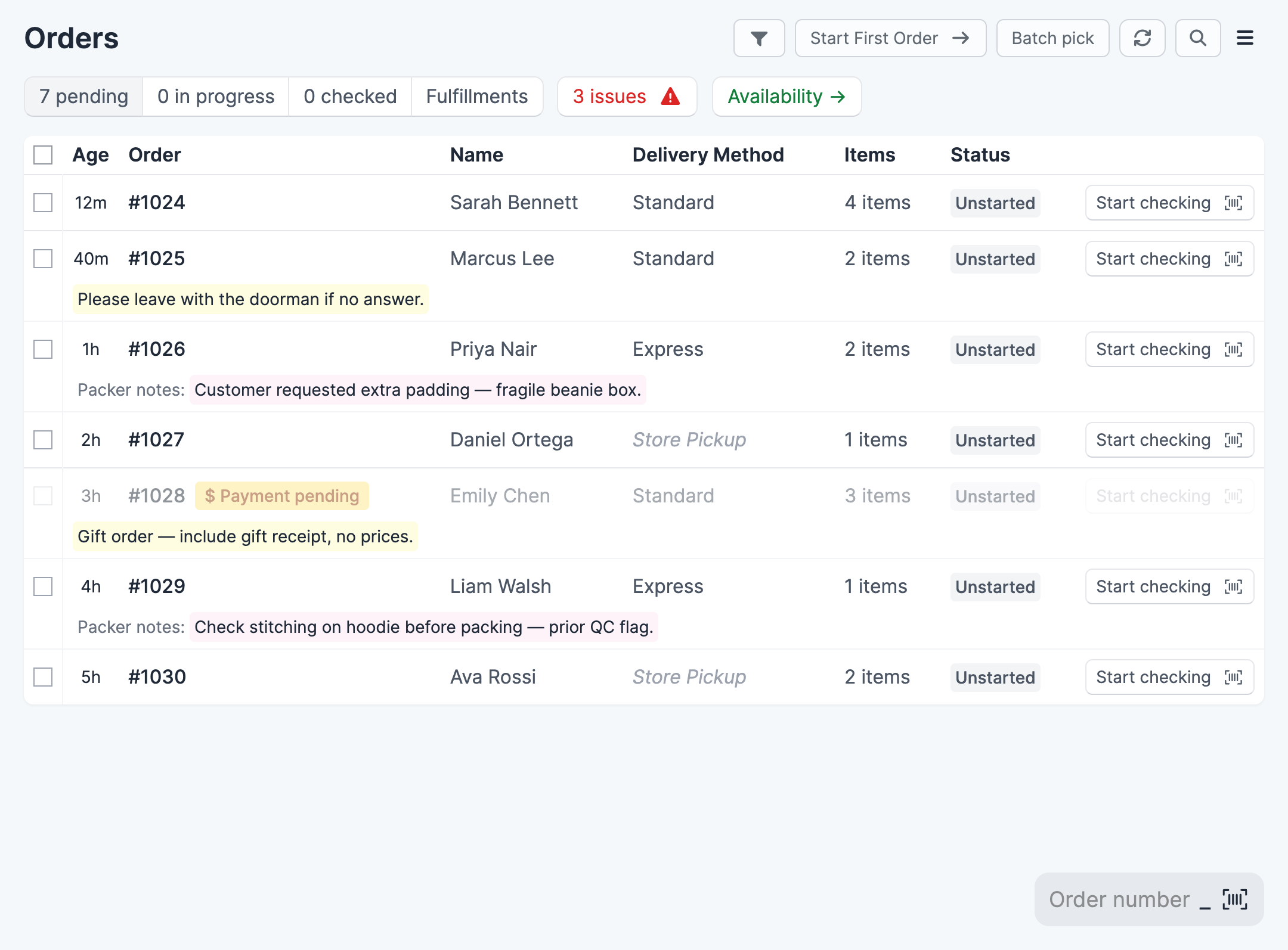
Tabs
The order queue has four main tabs, each showing a count so you can see at a glance how much work is queued up:
- Pending — Orders waiting to be checked. Sorted from oldest to newest.
- In progress — Orders currently being checked.
- Checked — Orders that have been checked and are ready to ship.
- Fulfillments — Recent fulfillments at your location, each ready for a quick check. Shown when Fulfillment Checking is enabled for your account.
A fifth tab, On hold, lists the orders at your location that are on hold in Shopify. See Putting orders on hold.
Next to the tabs there’s a link to any open order issues, and to the order availability report.
Pending tab
The pending tab lists all unfulfilled orders with their age, order number, customer name, delivery method, item count, and status. Order notes and packer notes appear below the order row.
Orders that haven’t been paid appear grayed out and can’t be started until payment is received. If you take payment on delivery or invoice your customers, see Order Queue settings for how to let those orders through.
Starting an order
There are several ways to start checking an order:
From an order row
Click Start checking on any order row to start it immediately, or click elsewhere on the row to open the order first.
Start First Order
Click Start First Order in the top right to open the Start checking dialog. It names the oldest order ready to check, and says how many earlier orders were passed over because they’re already started, unpaid or on hold, or short of stock. If you have filters active, only orders that match them are included. Click the start button to open the order’s checking page.
The dialog has two options:
- Only start orders with enough stock — Orders that can’t be picked in full stay in the queue. Stock is worked out the same way as on the Order availability page. This is the same choice as in the batch picking dialog, and Scanpacker remembers it.
- Start the next order automatically — When you finish an order, the next one in the queue starts. See Auto-advance.
[Screenshot: Start checking dialog showing the next order, the passed-over orders, and the two options]
Batch pick
Click Batch pick in the top right to create a batch. Tick the checkboxes on the left of order rows first to batch just those orders; otherwise the batch is made up from the next pending orders. The checkboxes and Batch pick button appear when batch picking is included in your plan.
Scan an order number
Use the Order number field at the bottom of the page to type or scan an order number with a barcode scanner. A popup shows the order details and lets you start checking immediately.
In progress and Checked tabs
When you start an order, it moves from the Pending tab to the In progress tab. This prevents other team members from accidentally working on the same order.
Each row in the In progress tab represents a fulfillment order, not necessarily a whole order. If a Shopify order is split across multiple locations, each location’s fulfillment order gets its own session and can be checked independently.
Click an order to continue checking or proceed to fulfillment.
Once all items are checked, the order moves to the Checked tab, where it’s ready to be shipped. Click a checked order to open the fulfillment page and create the shipment.
Unstarting an order
If you need to release an order back to the queue (for example, so another team member can check it), click Unstart on the order’s checking page. The order returns to the Pending tab.
Putting orders on hold
Put an order on hold when you can’t send it yet, for example because an item is out of stock or the address needs checking. An order on hold leaves the Pending tab, so nobody starts it or adds it to a batch by mistake. It also stops taking stock, so newer orders that need the same products can be picked in full.
Scanpacker uses Shopify’s own fulfillment holds. An order you hold in Scanpacker shows as on hold in Shopify too, and you can’t fulfill it in Shopify until you release the hold. An order put on hold in Shopify also leaves the Pending tab.
To put orders on hold from the Pending tab:
- Tick the checkboxes next to the orders.
- Click Hold in the top right.
- Choose a reason, such as Inventory out of stock, and add a note if you like.
- Click Put on hold.
To put a single order on hold, open the order and click Hold next to Start checking.
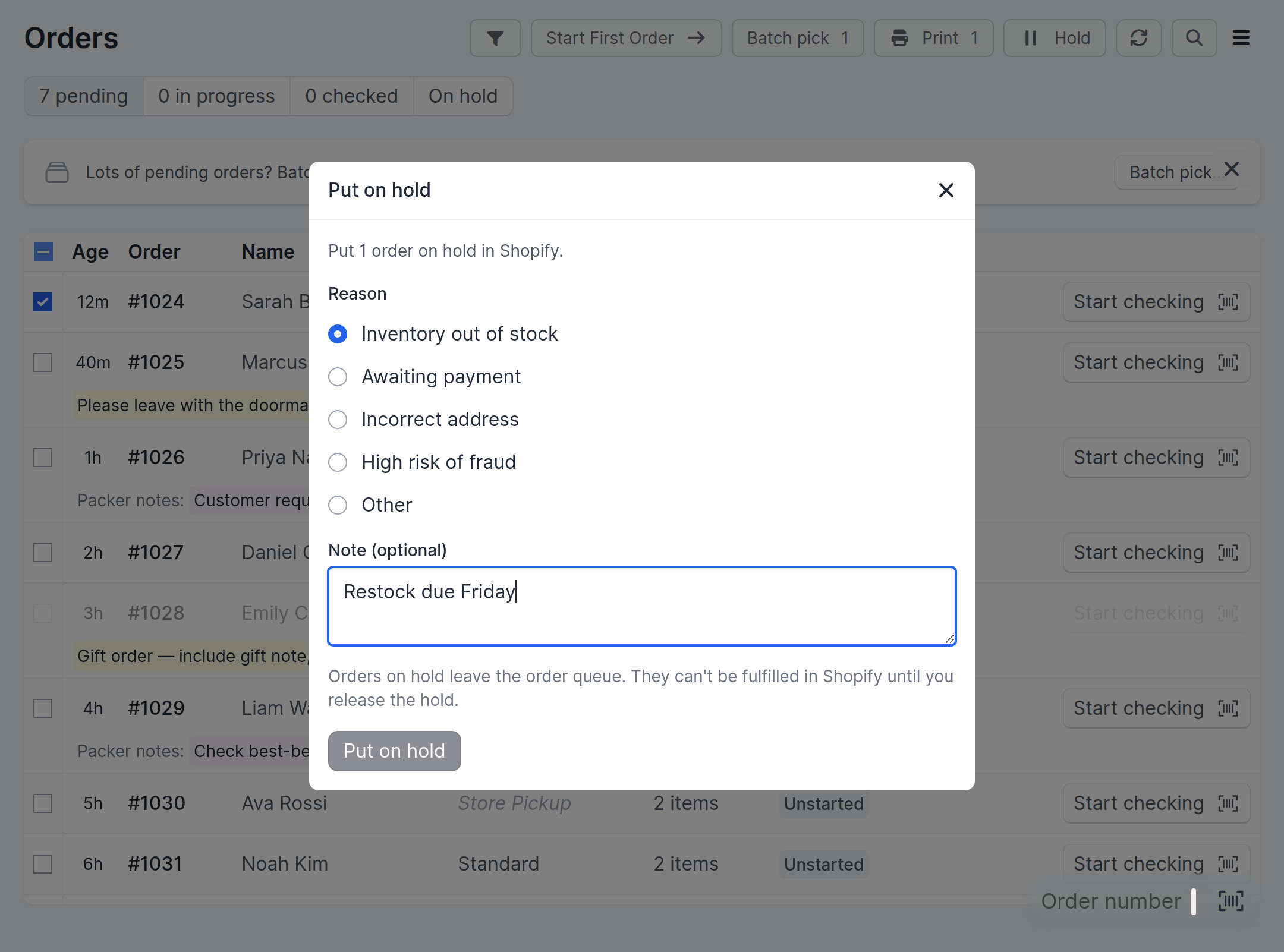
You can’t put an order on hold once someone has started checking it. Unstart it first.
Releasing a hold
The On hold tab lists each order on hold with its reason and note. Click Release hold to send the order back to the Pending tab. You can also release a hold from the order’s page.
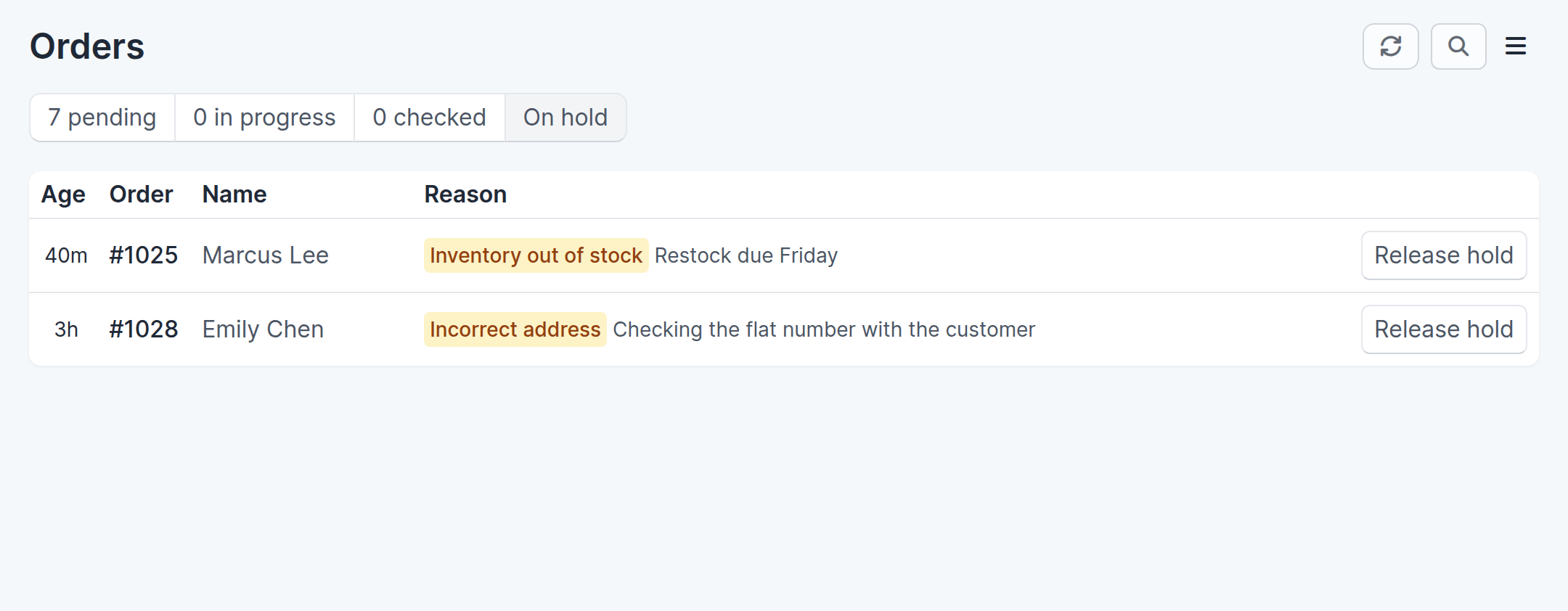
Releasing a hold in Scanpacker removes every hold on that order, including holds added in Shopify.
Multiple team members
Scanpacker is designed for teams. Each team member should have their own Shopify staff account so that Scanpacker can track who is working on which order.
When one team member starts an order, it moves to the In progress tab and is locked to that person. Other team members see it as in progress but can’t check it. This prevents two people from accidentally packing the same order.
Filtering orders
Click the filter icon in the top right to narrow down the orders shown. Available filters:
- Must be tagged — Show only orders that have a specific tag (e.g. “wholesale” or “rush”).
- Exclude tagged — Hide orders with a specific tag (e.g. “hold”).
- Contains SKU — Show only orders that contain a product with this SKU, the product code set in Shopify (e.g. “ABC-123”). It must match the whole SKU, but upper and lower case don’t matter. If you removed that product from an order by editing the order in Shopify, the order may still show. With this filter on, Batch pick with no orders ticked batches the next orders that contain the SKU, so you can pick one product in bulk.
- Shipping method contains — Show only orders where the shipping method matches a piece of text (e.g. “express”).
- Exclude in-store pickup orders — Hide store pickup orders so you can focus on orders that need shipping.
- Single-item orders only — Show only orders containing a single item, which can be quicker to pack in a run.
When a filter is active, a banner above the order list shows which filter is applied. The same filters are shared with the order availability page, so switching between the two views keeps your filter in place.
Multiple locations
If your Shopify store has more than one location, a location dropdown appears next to the tabs. It shows the current location and lists other locations with their order counts. Switch locations to see orders assigned to each warehouse.
Searching for orders
Click the search icon in the top right to search for a specific order by number or name. This opens a search page where you can look up any order.
Related features
- Checking orders — The step-by-step workflow for checking and shipping individual orders
- Auto-advance through orders — Move from one order to the next without returning to the queue
- Batch picking — Pick items for multiple orders in a single pass through your warehouse
- Scan to Ship — Scan a checked order’s barcode to instantly purchase a label and create the fulfillment
- Order availability — Check stock levels across pending orders before you start checking
- Partial fulfillment — Ship part of an order when not all items are available
- Order Queue settings — Which orders appear on the queue, and which of them you can start