Auto-advance through orders
Auto-advance moves you from one order to the next without returning to the order queue in between. This is built for high-volume shipping, where going back to the queue after every order adds up.
How you turn it on depends on your fulfillment mode — whether Scanpacker creates the fulfillment for you, or you check orders here and fulfill them in Shopify or another app.
When Scanpacker creates the fulfillment
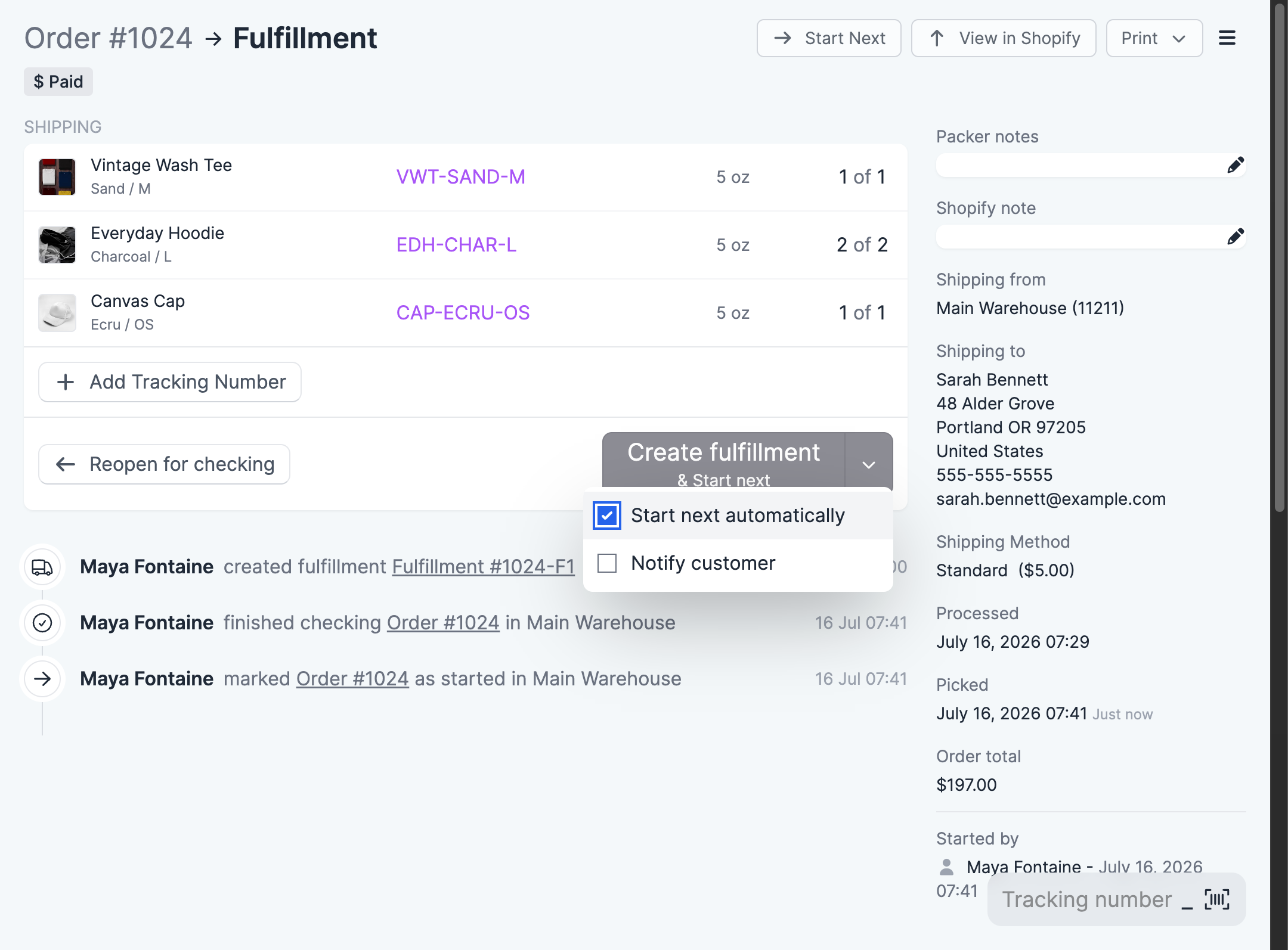
On the fulfillment page, click the arrow next to the Create fulfillment button and check Start next automatically. The same option sits under Checking Options on the checking page, so you can turn it on before you finish checking.
With it checked, the next shippable order opens immediately after each fulfillment is created, and stays checked as you move from order to order. You can also turn it on before you start, by ticking Start the next order automatically in the dialog that Start First Order opens. An order you start from its own row or page begins with it unchecked.
In check-only mode
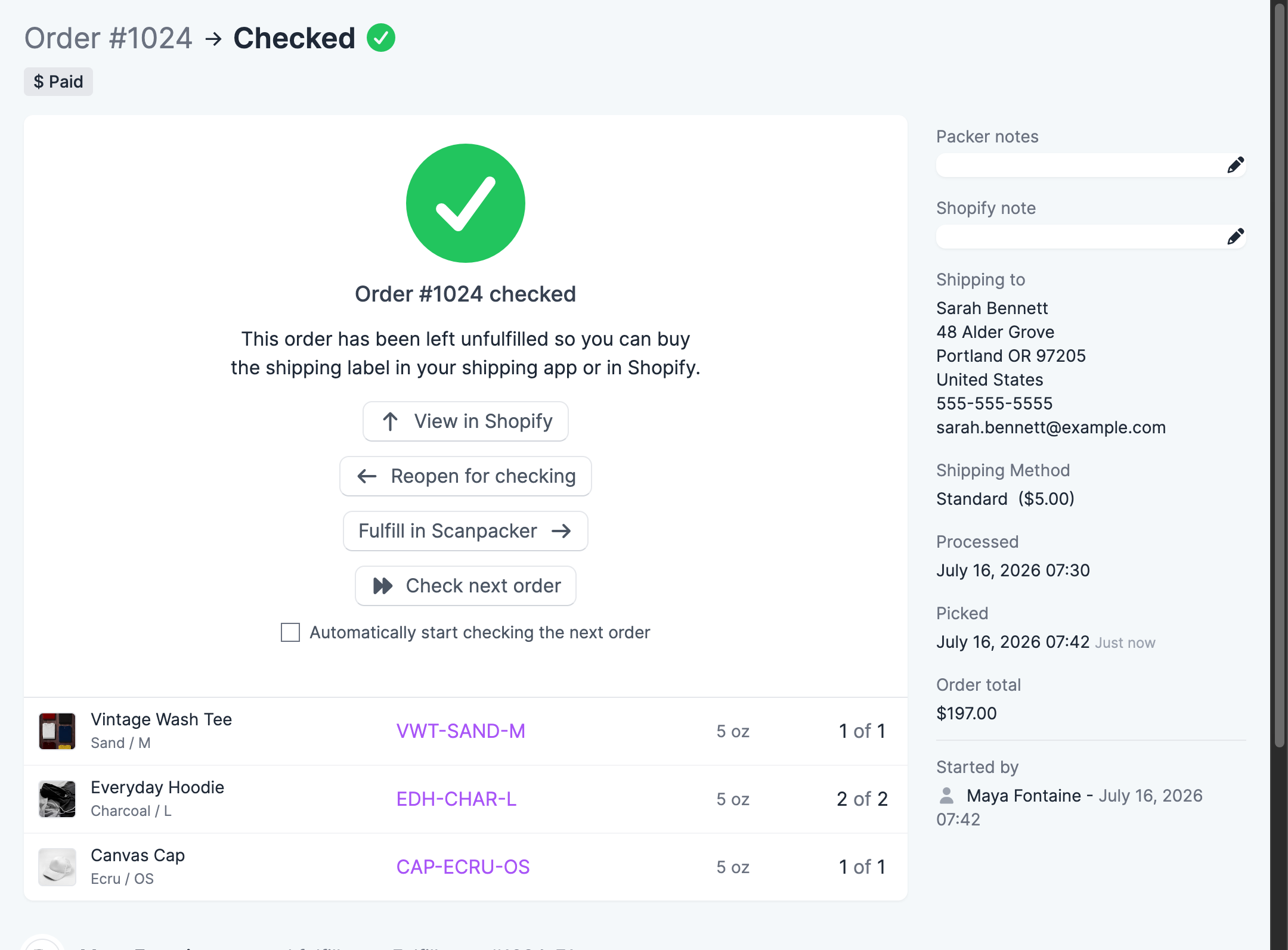
In check-only mode, finishing a check lands you on the Checked screen instead of the fulfillment page. Tick Automatically start checking the next order there, and after each check Scanpacker skips this screen and opens the next order straight away — you can check order after order, then buy labels and fulfill them in Shopify or your shipping app later.
The setting is remembered per user, so each packer can decide for themselves. Untick the box at any time to go back to choosing your next step manually.
If the order you just checked has other fulfillment groups still open at your location, Scanpacker offers those before moving on to the next order.
Orders checked as part of a guided batch don’t use this setting — there’s no Checked screen between orders, because checking carries on through the batch.
Start the next order from Shopify
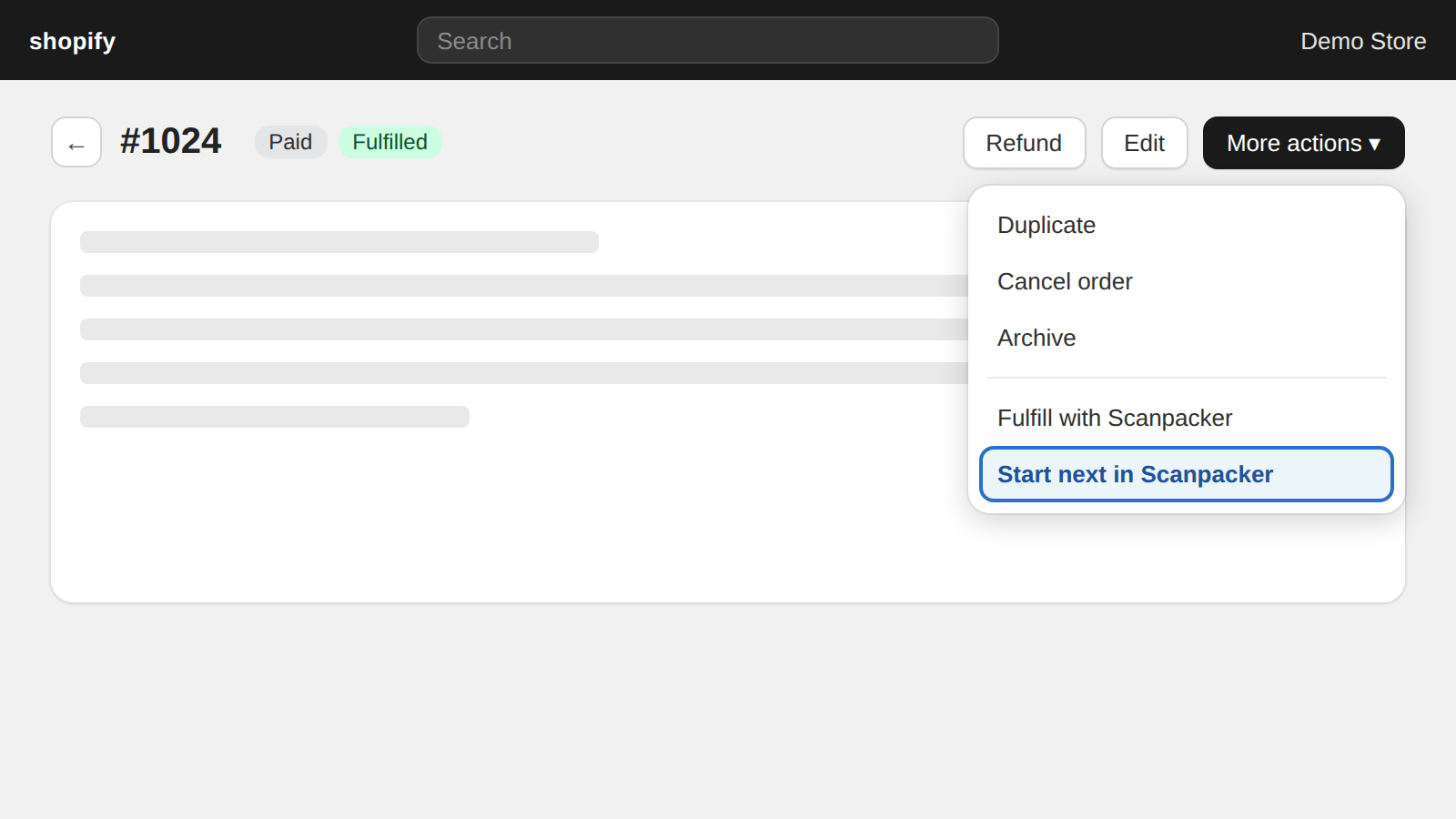
In check-only mode you often finish an order in Shopify — buying the label and creating the fulfillment there. To get back into checking without switching apps, choose Start next in Scanpacker from the More actions menu on the Shopify order page. Scanpacker starts checking the next order in your queue right away — or, if the order you were looking at still has fulfillment groups open at your location, one of those first.
How the next order is chosen
The next order is taken from the top of the order queue, oldest first. Unpaid orders are skipped. If you ticked Only start orders with enough stock, orders that can’t be picked in full are skipped too. Stock is worked out the same way as on the Order availability page.
If you have filters active on the order queue, the next order matches those filters. For example, if you’ve filtered to a single tag, auto-advance only moves through orders with that tag.
Skip to the next order
You can move to the next order without fulfilling the current one. On the checking or fulfillment page, click Start Next in the top menu. The current order stays in progress and the next order opens. Use this to defer an order you can’t pack right now. The current order keeps its stock while it’s in progress.
To release the current order back to the queue at the same time, click Unstart & Start Next instead. Older orders take stock first, so the order still keeps its stock. If it’s short and you want newer orders to have that stock, put it on hold.
Related documentation
- Checking orders — The core scan-and-fulfill workflow
- Fulfillment modes — Choose whether Scanpacker creates fulfillments or only checks orders
- Order queue — Managing and filtering orders
- Scan to Ship — Scan a checked order’s barcode to instantly purchase a label and create the fulfillment