Fulfillment modes
Scanpacker can work in two ways once you’ve finished checking an order: it can create the Shopify fulfillment for you, or it can leave the order unfulfilled so another app or Shopify handles that step. This setting is called your fulfillment mode. This page explains both modes and how to choose between them.
You’ll find the setting in Settings > Scanning & Fulfillment, near the top of the page.
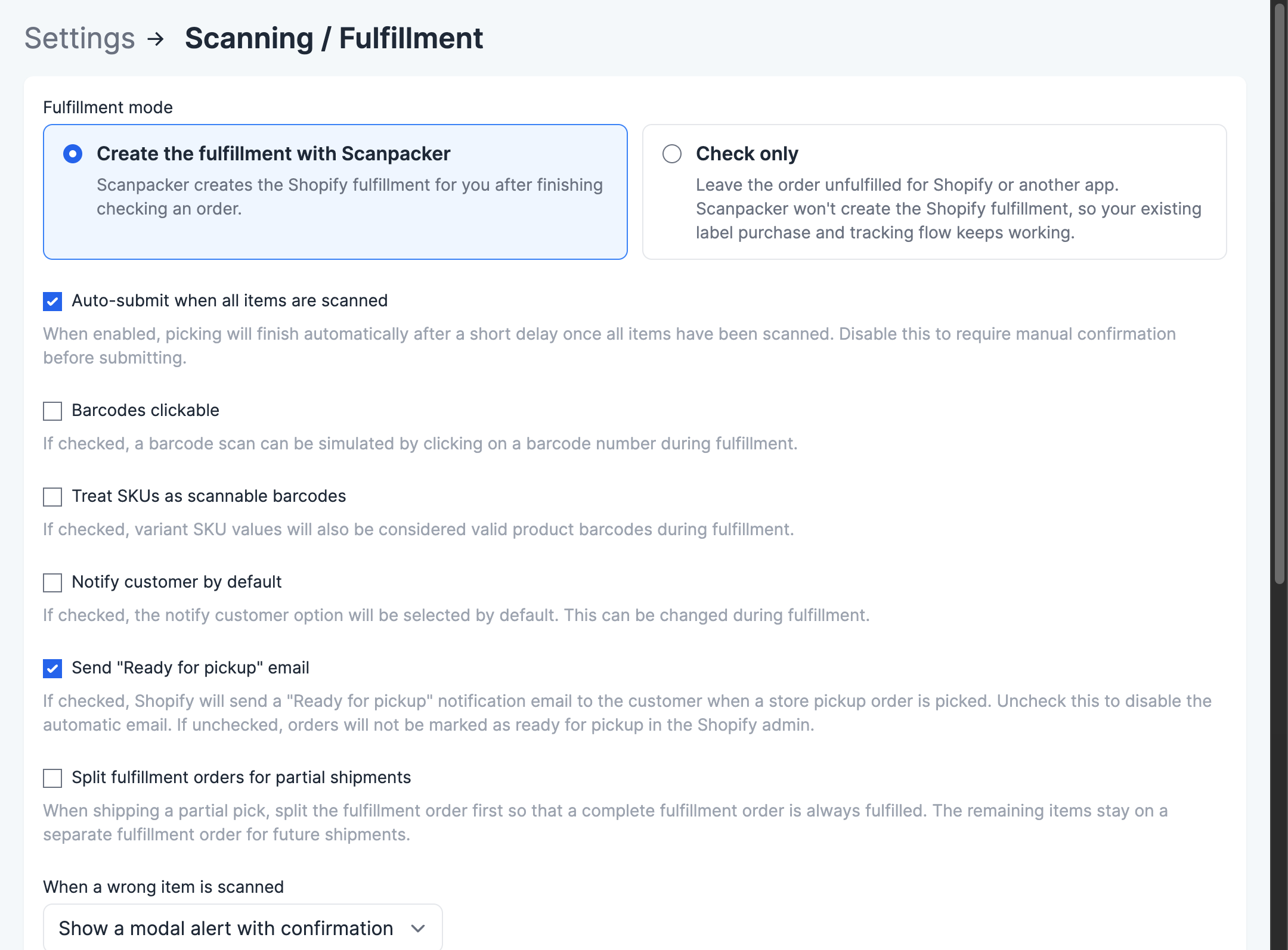
The two modes
Every order in Scanpacker starts the same way: you open it, scan each item’s barcode, and Scanpacker checks the items against what the customer ordered. The fulfillment mode decides what happens after that check is complete.
Create the fulfillment with Scanpacker
In this mode, Scanpacker handles shipping and fulfillment for you. After you finish checking an order, Scanpacker takes you to the shipping step, where you can buy a label or enter tracking details. When you’re done, Scanpacker creates the fulfillment in Shopify and marks the order as fulfilled.
Choose this mode if you want to buy shipping labels or record tracking numbers inside Scanpacker.
Check only
In this mode, Scanpacker checks the order but doesn’t fulfill it. After you finish checking, the order is left unfulfilled in Shopify so that your existing setup—Shopify’s own label purchase, or another shipping app—can fulfill it instead. Your current label and tracking flow keeps working exactly as it did before.
Choose this mode if you already buy labels and create fulfillments somewhere other than Scanpacker, and you only want Scanpacker to check that the right items go in the box.
What you’ll see after checking an order
The mode you choose changes the screen you land on once all items are scanned.
Create the fulfillment with Scanpacker: You move straight to the shipping step to buy a label or add tracking, then create the fulfillment.
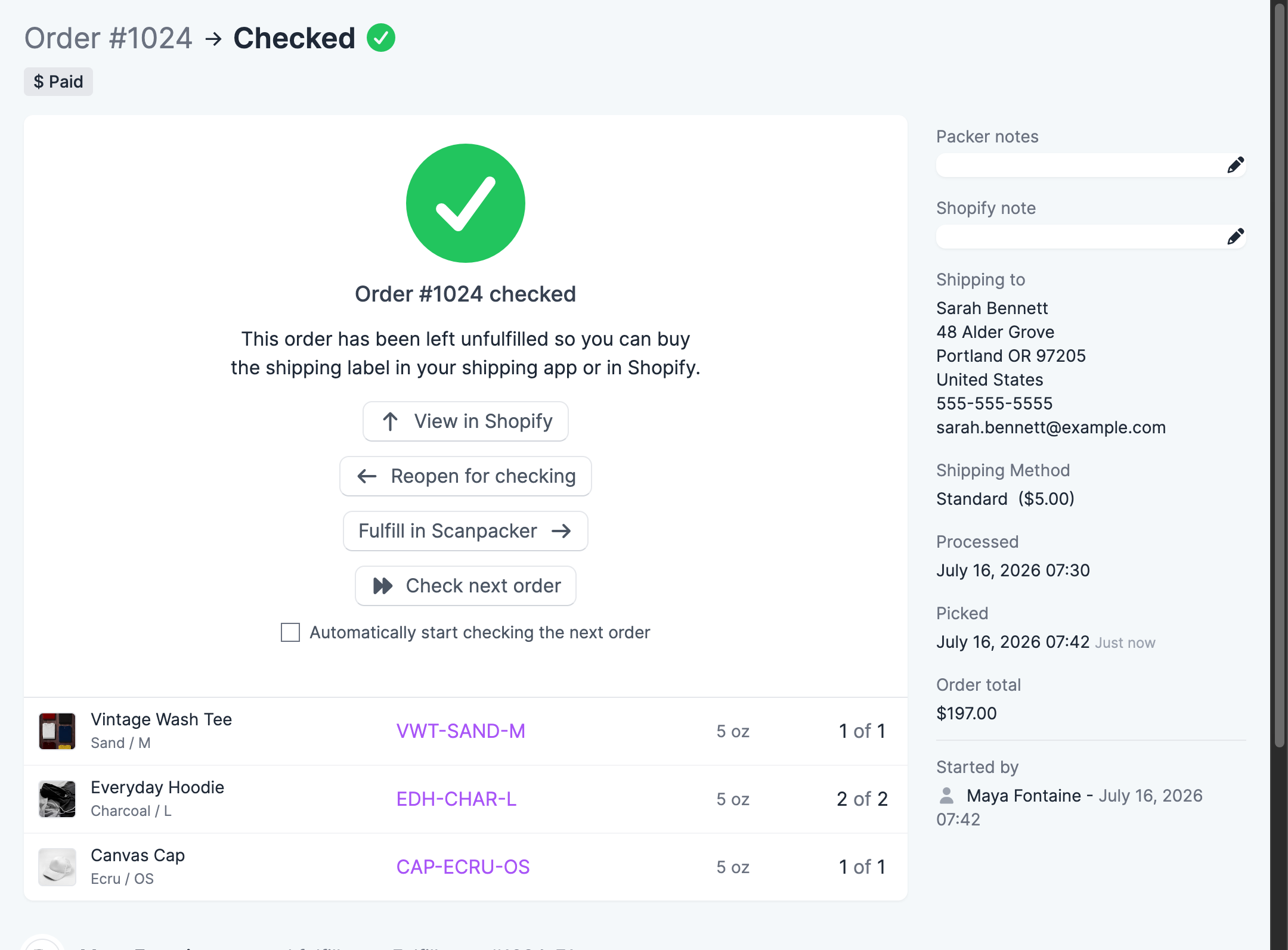
Check only: You see a “Checked” confirmation screen. From here you can:
- Check next order — move on to the next order in your queue.
- View in Shopify — open the order in your Shopify admin.
- Reopen for checking — go back and re-check the order if something needs fixing.
- Fulfill in Scanpacker — buy a label and create the fulfillment in Scanpacker for this one order, even though you’re in check-only mode.
Tick Automatically start checking the next order to skip this screen and jump straight into the next order after every check — see Auto-advance.
When you fulfill checked orders in Shopify, the Start next in Scanpacker action in the Shopify order page’s More actions menu takes you straight back into checking the next order — see Auto-advance.
How to change your fulfillment mode
- Go to Settings > Scanning & Fulfillment.
- Under Fulfillment mode, choose the option you want.
- Save your settings.
You can switch modes at any time, and the change applies to orders you check from then on.
Which mode should I use?
- You handle shipping inside Scanpacker (buying labels or entering tracking). Use Create the fulfillment with Scanpacker.
- You already buy labels and fulfill orders in Shopify or another app, and just want a packing check. Use Check only.
If you’re not sure, start with Check only. It leaves your current fulfillment process untouched and only adds the barcode check on top.
Checking orders that are already fulfilled
The two modes above decide what happens when you pick and check open orders. Fulfillment Checking is separate from both: you scan a fulfillment that has already been created—whether by Scanpacker, the Shopify admin, or another app—and confirm its contents item by item, without changing anything in Shopify.
Some teams use it as their only Scanpacker step, when picking and fulfillment happen elsewhere. Others use it alongside a fulfillment mode, as an extra ad-hoc check on orders that have already been fulfilled.
See Fulfillment Checking for the full how-to, including availability and permissions.
Related
- Fulfillment Checking — verify the contents of fulfillments that have already been created
- Scanning & Fulfillment settings — other options on the same settings page
- Quick start — scan and pack your first order